

Postback Test
Once your postback is set up, it is recommended to test it thoroughly before going live to ensure proper functionality and to detect and resolve any potential issues or bugs.
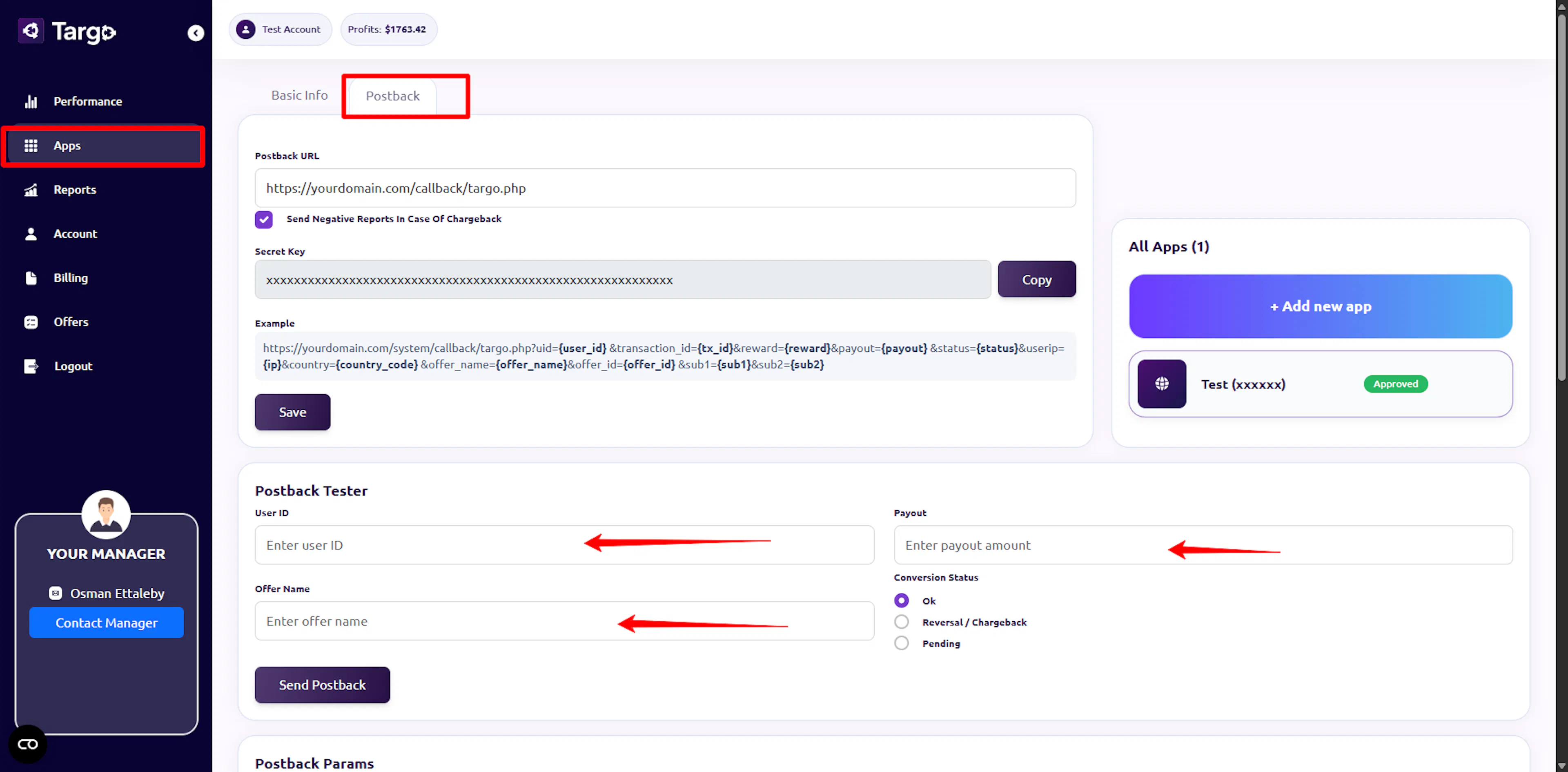
1.Login to your account
Open the Apps section, select your app, and click on the Postback tab. Scroll down to the Postback Tester area.
2. Fill in the Test Data
Enter the following details to simulate a conversion:
-
User ID: Enter a unique test ID (e.g.,
user123). -
Payout: Enter a test amount (e.g.,
5.00). -
Offer Name: Enter the name of the offer (e.g.,
test_offer). -
Conversion Status: Select OK, Reversed, or Pending.
Note: Technical data such as Event ID, IP Address, and Country... will be generated automatically by the system to simulate a real user environment.
3. Send the Postback
Click the Send Postback button to initiate the test.
4. Verify the Result
Observe the status message that appears after clicking the button:
-
Success: If you see "Test postback sent successfully!", your postback is working correctly and you are ready to go live.
-
Failed: If the test fails, look at the Response Body provided in the logs. It will show the specific error returned by your server (e.g., 404 Not Found, 500 Server Error, or Auth Failure) so you can fix it.